
Workflows
Kent workflows are reusable process graphs for agent work. A workflow defines where a task starts, which agent roles work on it, which choices those agents can make, when humans approve a step, how parallel branches join, and where automation stops.
Workflows are linked to projects. Tasks live in projects, then move through the linked workflow as Kent starts sessions, manages worktrees, collects transition outputs, asks questions, waits for approvals, and records activity.
Example:
Backlog -> Plan -> Implement -> Review -> Done ^ | | v +----- Needs changes1. Choose how to build
Section titled “1. Choose how to build”Ask Kent to create it
Section titled “Ask Kent to create it”The easiest path is to ask Kent to model your existing work process as a workflow. Kent agents can inspect your repo, agent roles, skills, slash commands, project conventions, and past sessions, then create the reusable workflow definition for you. After that, use Kent Desktop to review and adjust the graph.
Example prompt:
Use the Kent workflows skill. Study my existing Claude Code/Codex data: agent configurations, slash commands, skills, and session logs that represent my real workflow. Turn that work process into an automated Kent workflow for this project.
Include the roles, nodes, transitions, prompts, parameters, context modes, approvals, and completion modes you recommend. Link it to this project, set it as the default if it is ready, and tell me what I should review in the desktop workflow editor. Follow the rules in the skill strictly. Launch review subagents to validate the prompts and workflow topology until they stop finding issues, and only then end your turn.
This path works best when you describe the real decision points in your process: when implementation is done, what a review must return, when QA is required, what counts as shipped, and where you want explicit approval.
Build or edit in Kent Desktop
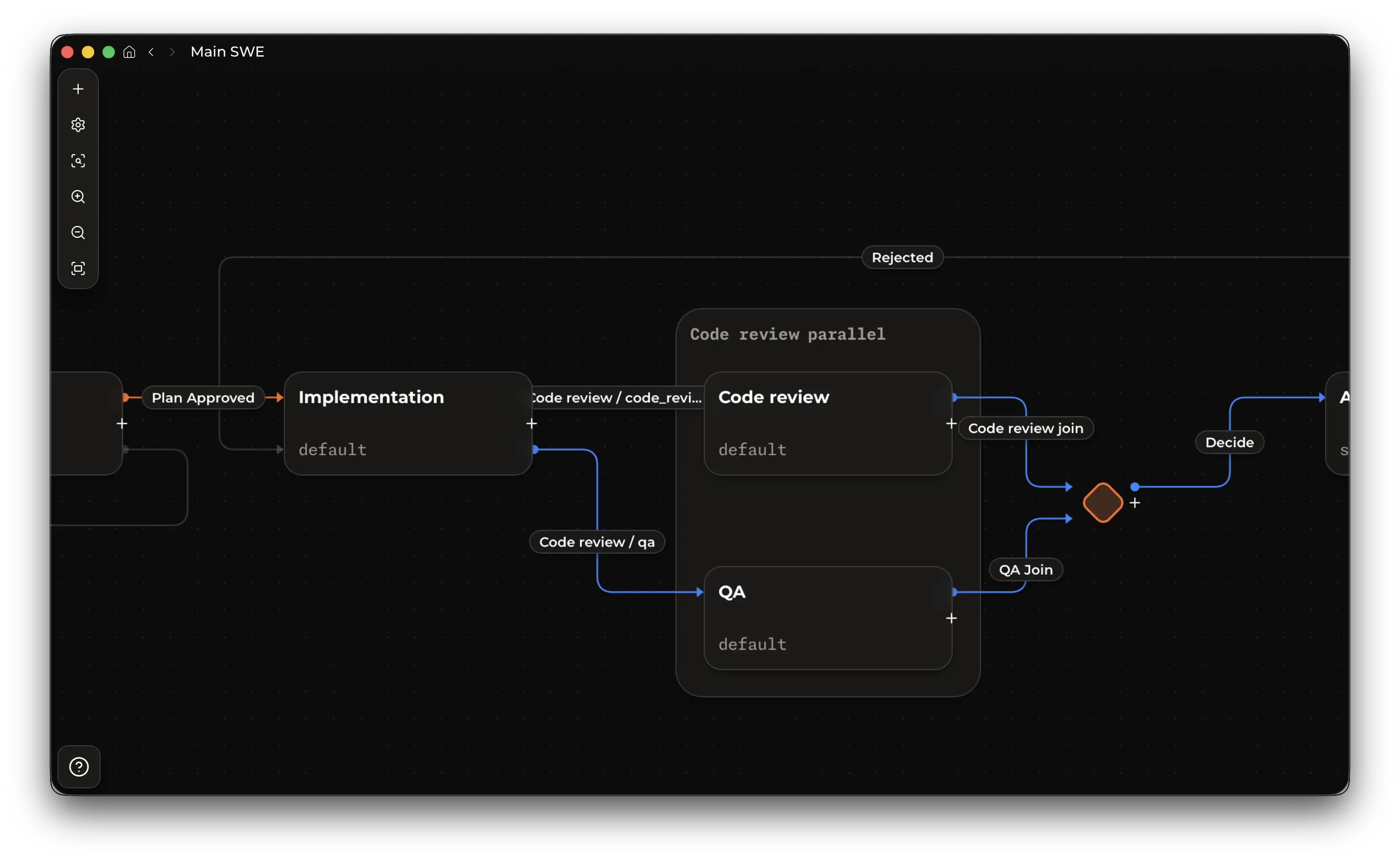
Section titled “Build or edit in Kent Desktop”Use Kent Desktop when you want direct control over the workflow definition. From a project, create or link a workflow, open the workflow editor, then edit the graph.
2. Set up agent roles
Section titled “2. Set up agent roles”Workflow agent nodes run existing Kent subagent roles. Each agent node requires an assignee, and that role must effectively enable ask_question. See tools for tool configuration. Why? Ability to ask questions prevents infinite loops and other issues where the workflow is problematic or requirements are ambiguous.
Eligible serial transitions into agent nodes can select an assignee from roles explicitly configured with agent_callable = true. Kent force-enables ask_question for that transition-selected execution.
[subagents.implementer]description = "Implements approved tasks and leaves reviewable changes."model = "gpt-6-luna"thinking_level = "xhigh"system_prompt_file = "agents/implementer.md"agent_callable = false # prevent ordinary Kent sessions from delegating to this role
[subagents.reviewer]description = "Reviews changes and returns actionable findings."model = "gpt-6-astra"thinking_level = "medium"system_prompt_file = "agents/reviewer.md"workflow_subagent = false # prevent workflow agents from delegating to this role
See Headless runs for the role configuration reference.
3. Understand the graph
Section titled “3. Understand the graph”Workflow, project, and task
Section titled “Workflow, project, and task”- A workflow is the reusable graph definition.
- A project links workflows, provides workspaces, and owns the task board.
- A task is the durable unit of work that moves through one workflow.
- A task directly owns its current nodes: normally one node, or several while a transition fans out into parallel branches. Current nodes have no independent identity.
- An agent current node can bind to an existing Kent session. A script current node uses its saved script state for resumption.
Creating a task leaves it in Backlog. Explicitly starting it applies the workflow’s start transition, which starts every executable branch in that transition. The task enters one node or several parallel branches, and a join waits for every branch before continuing.
Nodes are workflow states. Visible executable and terminal nodes become board columns.
| Node kind | Use |
|---|---|
| Start / Backlog | Where tasks rest after creation. Each workflow has one start node. |
| Agent | Runs a Kent agent using the selected subagent role. |
| Script | Executes a local script on the Kent server. |
| Join | Waits for parallel branches and aggregates their parameters. |
| Terminal | A sink where automation stops, commonly Done. |
Keep node keys stable and machine-friendly, such as plan, implement, review, needs_changes, and done. Keys are used by agents, prompts, and validation, so prefer lower-case letters, numbers, and underscores over display labels with spaces.
Node display labels are optional. Completion messages use the node key when its display label is empty.
Transitions
Section titled “Transitions”A transition is a choice an agent can make when it completes a node. A transition has a human label, a stable key, and a model-facing description that tells the source agent when to choose it. In graph terms, each branch is an edge to a target node.
Each transition contains one or more branches:
- A normal transition has one branch to one target node.
- A fan-out transition has multiple branches and starts parallel work.
- A branch into an agent node carries that target agent’s prompt, context mode, approval setting, and parameters.
Use transition descriptions for agent-facing choice criteria. For example, a Review node might offer done with “Choose when the implementation is correct and ready to ship” and needs_changes with “Choose when implementation changes are required.”
Parallelism, node groups, and joins
Section titled “Parallelism, node groups, and joins”Use a node group when you want several nodes to execute in parallel.
For example, an SWE workflow can send implementation output to Code Review and QA at the same time, join both results, then continue to an Approval Gate node that decides whether to ship or send the task back for changes.
Implement | +--> Code Review --+ | | +--> QA -----------+--> Join -> | Approval Script | -> DoneTo create a new parallel group, right-click the node and select “Group”. Drag additional agent nodes into the group to add branches.
Wire the group as one fan-out transition from the upstream source to every grouped branch. Each branch then routes to the group’s join node, and the join routes to the next node in the workflow.
Use the join to aggregate branch parameters, then put synthesis, release-note writing, approval, or final decision-making in a normal agent/script node after the join.
4. Configure agent work
Section titled “4. Configure agent work”Prompts
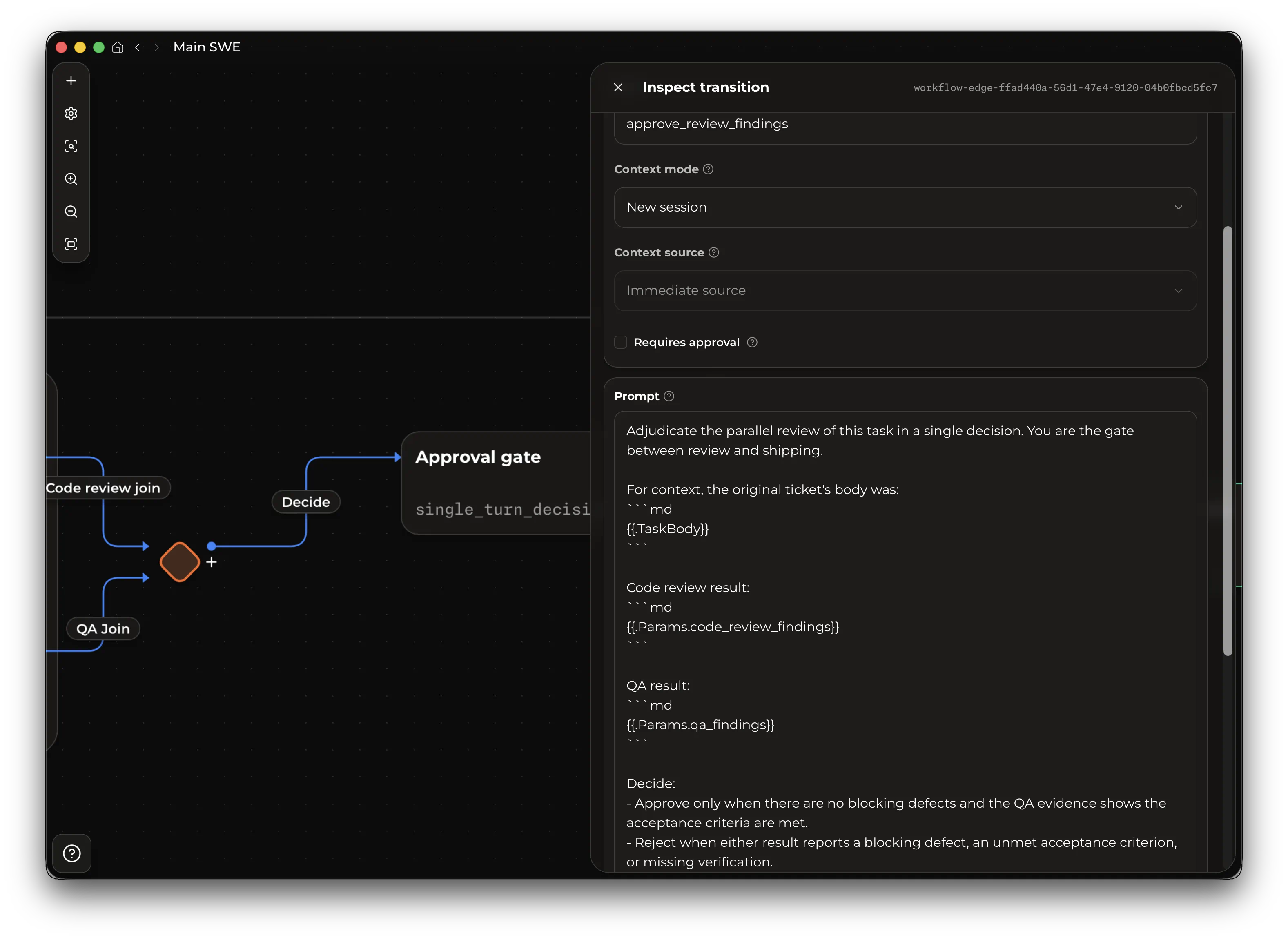
Section titled “Prompts”Agent prompts live on transitions into agent nodes. The transition prompt is the work order the target agent receives when that branch starts.
Prompts can use task fields:
Implement {{.TaskShortId}}: {{.TaskTitle}}
Task details:{{.TaskBody}}
They can also use parameter values produced by earlier transitions:
Address these review findings:{{.Params.findings}}They can also use transition commentary, a default parameter that agents usually provide when they finish the task:
Source transition notes:{{.Params.commentary}}To reference a guaranteed earlier transition, qualify the parameter with that transition key:
Use the approved plan:{{.Params.planning.plan_file_path}}A previous-transition parameter is valid only when every path to the prompt passes through that transition. If a value might not exist because of branching, declare a local parameter on the transition that needs it.
Script nodes
Section titled “Script nodes”Use a script node when a workflow step should run a deterministic local executable instead of an agent. Script nodes can be used anywhere an agent node can.
Set the script path on the script node. All paths are resolved on the server machine. Relative paths resolve against the task’s execution root.
The node script receives JSON as stdin:
{ "plan_file": "docs/plan.md", "_kent": { "task_id": "task_123", "node_id": "node_456", "transition_branch_key": "release_notes" }}Top-level properties are incoming workflow parameter values. _kent contains meta-information about the workflow execution, useful for scripting or logging.
Stdout must be the workflow completion JSON. Stderr is diagnostics only. For example:
{ "transition": "done", "commentary": "Generated release notes.", "release_notes_path": "docs/release-notes.md"}If the script exits non-zero, writes invalid completion JSON, omits required parameters, or becomes unavailable, Kent interrupts the current node. Resume reruns the script with the same incoming parameter values and the current workflow script path and transition contracts.
Parameters
Section titled “Parameters”Parameters are required string outputs from the source agent. They are how one node hands structured facts to the next branch.
For example, a Review to Needs Changes transition can require:
| Parameter | Description |
|---|---|
findings |
Required implementation changes, including file paths. |
verification |
Checks the reviewer ran and the results. |
Declare parameters on the transition whose source agent can produce them. In fan-out transitions, matching parameter keys must have matching descriptions because they represent one shared output contract.
For each transition, the source agent must provide the declared parameters before it can complete that branch. The target agent receives those values where the transition prompt references them with placeholders such as {{.Params.findings}}.
Transition assignee and thinking selection
Section titled “Transition assignee and thinking selection”Each eligible serial agent or script transition into an agent node can independently enable Let the previous node choose for the target assignee and Let the previous node select thinking level for thinking. A disabled selector uses the target agent node’s configured fallback assignee or configured thinking. Fan-out transitions do not support either selector.
Transition-selected effort follows the session’s thinking settings. Transition-selected assignees must be explicitly agent-callable roles.
Context modes
Section titled “Context modes”Context mode controls how the target agent starts its session. It applies to transitions into agent nodes. Transitions into joins or terminal nodes do not start agent sessions.
| Mode | Best for | Trade-offs |
|---|---|---|
| New session | Independent work, QA, code review, security review, release note drafting. | Lowest starting context and cleanest role boundary. The prompt and parameters must contain the context the target needs. |
| Compact and continue session | A large phase handing off to another role or another direction. | Adds a handoff step and starts a new session from a summary. Good when full conversation history is unnecessary but a clean summary matters. This mode forces compaction at the transition and allows a role switch. |
| Continue session | Tight loops and direct follow-up work with the same context. | Uses the same conversation history and prompt cache. |
Continuation modes also have a context source:
- Immediate source uses the session from the node that just completed.
- Selected node uses a previous node that is guaranteed to have run before this transition.
- Previous target uses the latest saved session associated with this edge’s target node. Use it for loops where the workflow returns to a node and should continue that node’s prior session.
- Previous target, or new session uses the latest saved session associated with this edge’s target node when one exists. Use it for re-review loops where the first pass starts fresh and later passes continue the target’s prior session.
Use new_session or compact_and_continue_session when you need to change agent roles between sessions or the task benefits from a fresh pair of eyes.
Human approval
Section titled “Human approval”A transition can require approval. When the source agent chooses that transition, the task waits before target branches start. Use approvals for plan acceptance, destructive operations, release steps, or any point where you want to inspect the agent’s proposed direction. For fan-out transitions, approval gates the whole selected transition before any branch starts.
Completion modes
Section titled “Completion modes”Completion mode controls how an agent node reports that it has finished and which transition it selected. Only agent nodes have completion modes. Start, join, and terminal nodes use their own transition rules.
| Mode | Use | Cache and cost notes |
|---|---|---|
| Inherit global default | Use the workflow completion mode from configuration. | Same behavior as the resolved configured mode. |
| Auto | Best default for most nodes. Kent picks the effective mode from the workflow shape, provider support, and shell availability. | Usually gives the safest cache/cost trade-off automatically. |
| Structured output | Provider-native structured output. Use it when the provider supports strict structured responses and the node is not part of a continue_session chain. |
Lowest-friction on capable providers, but prevents the current node from starting when unsupported and fully invalidates cache on continued sessions. |
| Tool call | Dedicated completion tool. Use it for providers without structured-output support. | Reliable tool-driven completion, but fully invalidates cache on continued sessions. |
| Shell command | Completion through the agent’s shell environment. Prefer this for continue_session chains. |
Requires the shell tool for the target role and gives the agent shell access, but avoids completion-contract cache invalidation. |
| Unstructured output | Best-effort raw JSON final answer. Use only when you need continue_session and cannot use shell commands. |
Most fragile mode. It avoids dynamic completion metadata, but depends on the model following exact final-answer instructions. |
auto chooses unstructured output if the runtime has no shell available. Otherwise it chooses shell command when the workflow contains a continue_session transition, structured output on capable providers, and tool call as the remaining fallback.
Cache and cost behavior
Section titled “Cache and cost behavior”Workflow design affects prompt-cache continuity and token spend:
continue_sessiongives the strongest cache continuity because it uses the same session, conversation history, and provider cache.new_sessionstarts clean. The prompt and parameters must carry enough context for the agent, otherwise the target agent will spend tokens re-orienting in the workspace, negating the cost and quality benefits of fresh context.compact_and_continue_sessioncompacts the previous session, then starts a fresh session from that summary with the target role. It frees context but adds costs to compact the session.
6. Manage tasks
Section titled “6. Manage tasks”Each task belongs to one project and one linked workflow: the project supplies workspaces and execution environment, while the workflow supplies the automation path.
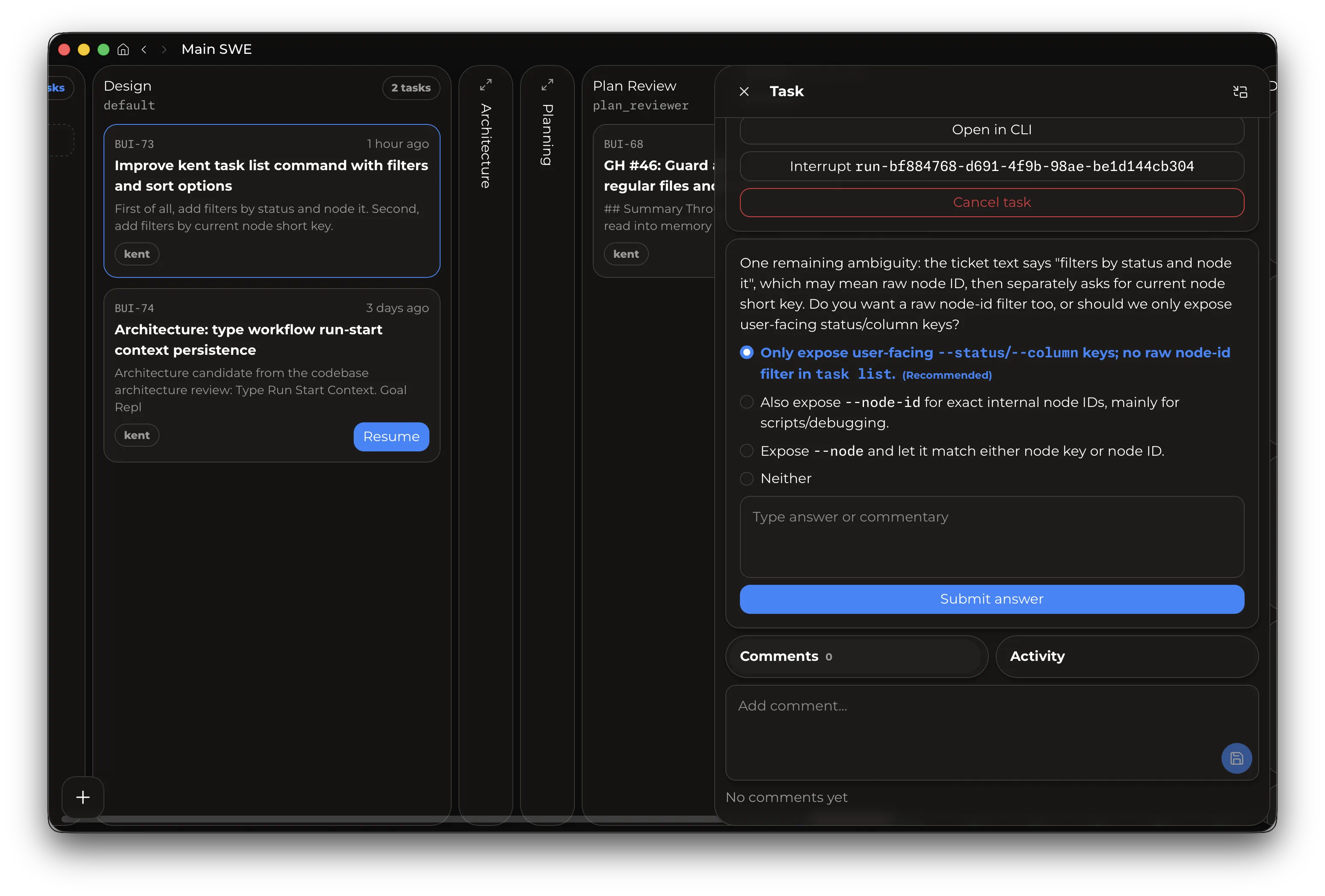
- Project tasks contain github-style labels. You can create and rename labels from the label chooser. Deleting a label removes it from every task in the project.
- Task dependencies connect blocked and blocking tasks and offer convenience UI to build and complete task chains.
- Search tasks by pressing
Alt+Spaceon any page of the desktop app or via the 🔍 icon.
Task worktrees
Section titled “Task worktrees”The workflow’s worktree policy chooses where agent and script nodes run:
| Policy | Execution root |
|---|---|
| Ask when execution starts | Will ask for a target for every task start |
| No managed worktree | The task’s selected workspace. |
| Source HEAD | A worktree created from the source repository’s current commit. |
| Repository default branch | A worktree created from the default branch configured by local remote-HEAD metadata (a remote must be present). |
| Custom Git revision | Provide a fixed branch, tag, or commit. |
Managed replacements use a fresh worktree and default their branch name to the task short ID. If that name collides, supply an available name through Desktop’s Branch name field or --branch-name.
More about worktrees on the Worktree page.